
Explore Insights in Your Map With Grouping
當您使用 BatchGeo 標示 Excel 檔案或其他試算表時,通常會有除了位置欄位之外的更多資料。我們會為其餘資料尋找最合適的呈現方式。在有用時,您的欄位會被推薦用於群組功能。使用者將能只選取符合特定條件的標記並過濾掉其他標記。可以結合多個群組來鎖定非常特定的結果,讓您洞察地圖背後的故事。
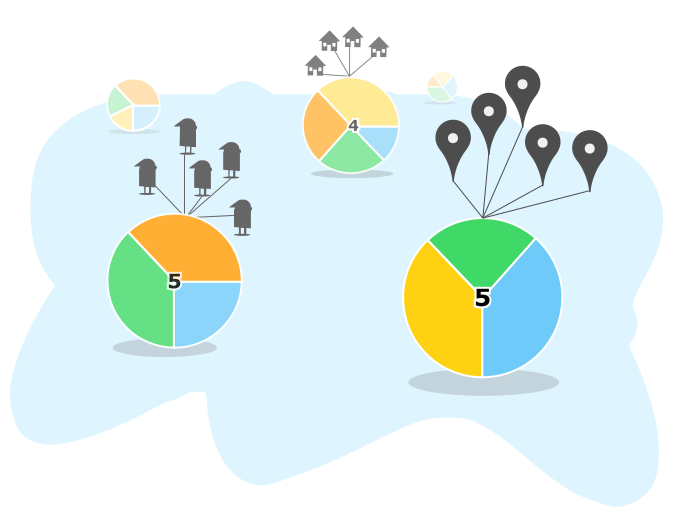
Example Map Grouping
在全螢幕地圖中查看 世界上最高的建築
上方的 100 棟最高建築地圖是使用 Wikipedia 的公開資料建立的。除了位置(在此為城市名稱)之外,還包含建築名稱、排名(1-100)、高度(公尺與英尺)、樓層數以及建造年份。建築名稱會成為文字框標題,其餘欄位皆可用於群組選擇。
試著將一些標記分組。假設您只想看最新的建築:
- Hover above the drop down in the lower left of the map to reveal the available grouping columns.
- Choose "Built" from the menu. Each marker on the map will change color based on its group.
- Select the top two ranges ("2016-2012" and "2011-2007"). As you select each, the map will filter to include markers that match your selection.
再試著加上第二個群組。您已經顯示了最新的建築,以下是如何只看最新建築中最高的那些:
- Hover above the group selection menu in the lower left.
- Choose "Height (ft)" from the menu. Only the height ranges for the current matches will be available.
- Select the top range ("2717-1399")

您現在正在檢視最高建築資料集的一個非常特定的子集合。您可能已注意到近期的最高建築大多位於中國與香港,只有少數例外。
To clear group selections, click the “x” on each of your groups, or just click the group menu once.
How to Add Grouping to Your Map
有兩種方式可以判定欄位是否可分組:
- The values are numeric and either unique or have few repeat values.
- The are many repeat values, especially non-numeric, such as a category or type.
通常來說,第一個可分組的欄位會預設顯示,且標記會依欄位中的值著色。您可以在建立地圖或之後編輯時,在「驗證並設定選項」畫面中變更預設的分組依據欄位。
停用地圖群組
If you prefer not to have data in your map grouped, you can easily disable it by editing your map. In Validate and Set Options, select “Single Color” for the Group By option.
How Map Grouping Works
當您將資料新增至 BatchGeo 時,我們會嘗試智能判斷每個欄位的內容。例如,我們通常能辨識地址和其他位置名稱。那些僅用於協助地理編碼的欄位會作為描述加入文字框中。在非位置的值中,我們會尋找可分組的欄位。最有價值的洞察往往來自試算表中的分類與數值資料。
The ideal number of groups is five or fewer (though we allow for a couple more). For numeric values, BatchGeo spread these out in ranges based on the distribution of the values within your data. For repeating values, such as categories, we take the most popular groups, then lump the rest into an “Other” category.
When users make multiple selections within one group, we employ an open matching approach. That is, if you've selected two categories, we look for “this” category OR “that” category. When selecting across multiple groups, we employ restrictive matching: “this” category AND “that” value, for example. You can see these approaches in action with our tallest buildings example above, when we selected two year ranges and a single height range.
我們認為已經選擇了讓進階製圖變得簡單的智能預設值。如果有您無法視覺化的內容,請務必聯絡並向我們提問。或者,如果您還沒有將任何資料分組,立刻用您的資料建立新地圖。
觀看這段簡短的影片
若要了解如何在地圖中使用分組,請觀看我們的短片。
使用分組功能充分發揮地圖的價值
透過分組功能釋放 BatchGeo 地圖的全部潛力——一種簡單卻強大的視覺化組織和篩選資料方法。在本教學中,我們將向您展示如何使用分組來揭示洞察、發現模式,讓您的地圖更具互動性與價值。
常見問題
BatchGeo 是什麼?如何運作?
BatchGeo 是免費的線上地圖工具,可將試算表資料轉成互動式 Google 地圖。只要從 Excel、Google 試算表或任何試算表複製資料、貼到 BatchGeo 並點「立即地圖化」。我們會自動對地址、城市、郵遞區號與座標進行地理編碼並放到地圖上。
BatchGeo 可以免費使用嗎?
可以。BatchGeo 提供免費方案,最多可用 250 列資料建立地圖。若要更大資料集、進階功能(密碼保護、無廣告地圖),BatchGeo Pro 方案每月 $99 起。
BatchGeo 接受哪些位置資料?
BatchGeo 接受完整地址、城市與州名、郵遞區號、經緯度座標、IP 位址,以及地標或商家名稱。我們支援全球超過 200 個國家/地區的資料。
可以把 BatchGeo 地圖嵌入我的網站嗎?
可以。儲存地圖後你會收到嵌入代碼,用法類似嵌入 YouTube 影片。只要把 HTML 片段貼到網站、部落格或 CMS。地圖由 BatchGeo 主機代管,會在頁面上正常顯示。進一步了解 嵌入地圖。
建立地圖後如何分享或更新?
每張地圖都有專屬 URL,可透過電子郵件、社群或訊息分享。要更新地圖,請使用儲存時寄到你信箱的編輯連結。你可隨時修改資料、變更設定並重新儲存。請參閱 編輯地圖資料 指南。